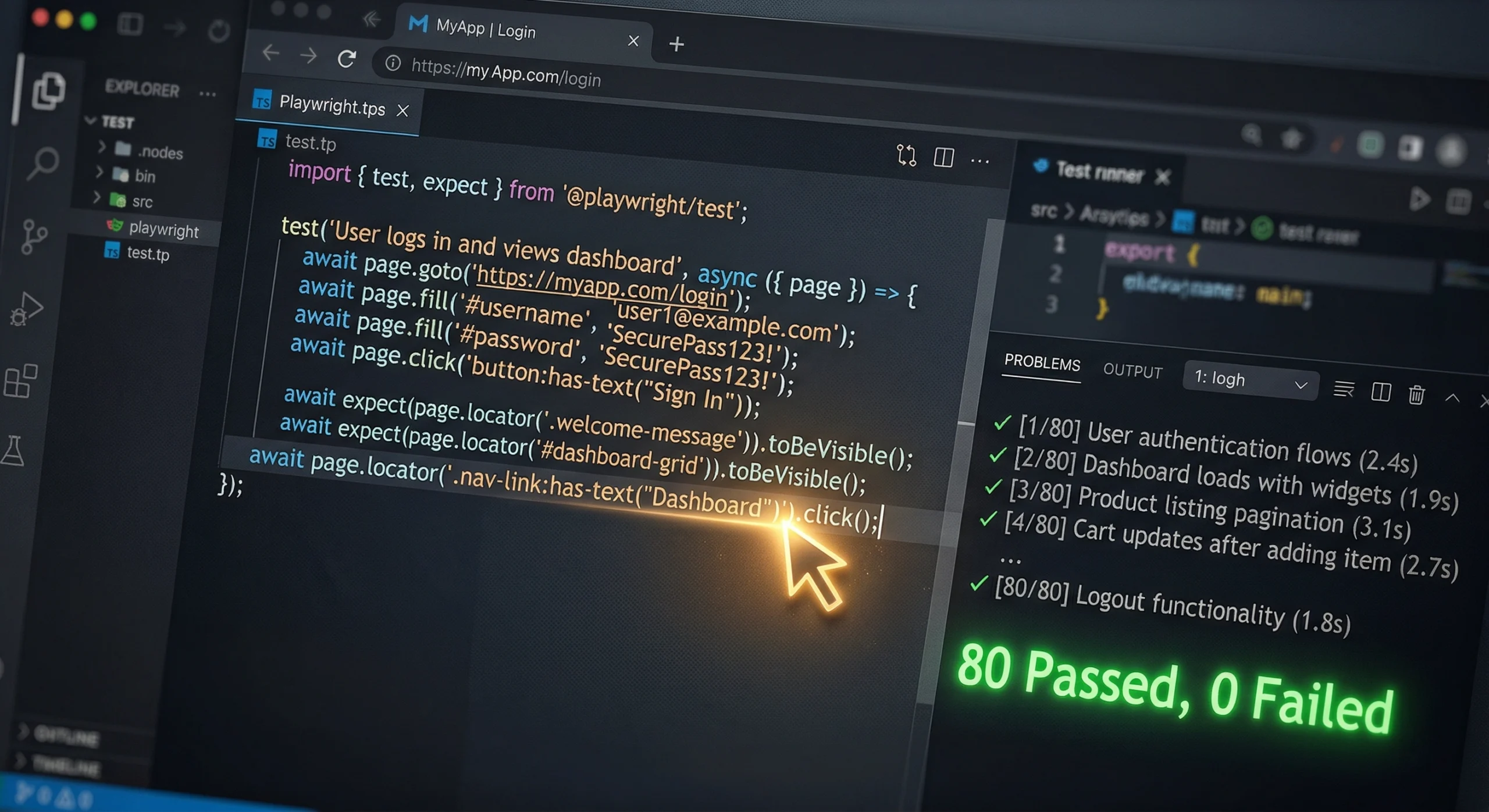
Writing robust end-to-end tests for a live, multi-page application you do not own is notoriously difficult. Without access to local development environments, Storybook components, or internal feature flags, you are left manually inspecting the DOM to figure out how things work.
However, the testing landscape is shifting rapidly. By leveraging GitHub Copilot’s extensible architecture, I was able to fully automate this testing workflow. Using specialized Copilot skills, I tasked the AI to autonomously explore 10 defined URLs, write the tests, run them, analyze the failures, and fix them iteratively. After about two hours of the AI continuously looping through a “test, check, fix, repeat” cycle, it successfully delivered a suite of 100% working tests. Here is exactly how this zero-touch automation works in practice.
1. Prerequisites: The Playwright MCP Server
Before triggering any AI skills, the underlying engine must be running. The GitHub Copilot skills are essentially lightweight runbooks that provide high-level instructions to the LLM. However, the actual browser automation and real-time DOM inspection capabilities are provided by the Model Context Protocol (MCP).
The official Playwright MCP server is strictly required for this workflow to function. It allows the LLM to spin up a headless browser, read the accessibility tree natively, and execute deterministic actions. You can start the server locally with a single command:
npx @playwright/mcp
Once running and attached to your IDE, Copilot gains the “eyes and hands” it needs to see and interact with live web pages.
Adding Skills to Your Workspace
Before triggering the automated testing loop, the AI needs to know how to execute the Playwright commands. GitHub Copilot uses an open standard called “Agent Skills,” which are self-contained folders containing instructions (SKILL.md), scripts, and configuration files. Copilot dynamically loads these instructions only when a prompt requires them, saving token context.
There are two primary ways to install skills from the Awesome Copilot repository:
Method 1: The Manual Folder Copy (Recommended for Teams) Because skills are tied directly to your codebase, the most reliable way to install them is to copy the skill folder directly into your project’s .github directory.
- Create a
skillsfolder inside your project’s root.githubdirectory (path:.github/skills/). - Download the complete folders for
playwright-explore-websiteandplaywright-generate-testfrom the awesome-copilot repository. - Place both entire folders into your
.github/skills/directory.
Once committed to your repository, anyone on your development team using Copilot in VS Code will automatically inherit these testing capabilities without needing to configure anything locally.
Method 2: The Awesome Copilot VS Code Extension If you prefer a UI-driven approach, you can install the official “Awesome Copilot” extension from the Visual Studio Marketplace.
- Open the extension’s dedicated Activity Bar panel in VS Code.
- Expand the “Skills” section to browse the community directory.
- Search for the Playwright skills and click the “Download” icon. The extension will automatically create the
.github/skills/directory in your active workspace and download the necessarySKILL.mdfiles and supporting assets for you.
(Note: Ensure that the experimental setting chat.agent.enabled or chat.useAgentSkills is toggled on in your VS Code configuration so Copilot knows to scan your .github/skills directory).
2. The Core Commands: Explore and Generate
The workflow begins by directing the AI to analyze a single page. Instead of writing complex custom prompts from scratch, the pre-packaged Copilot skills handle the heavy lifting.
The initial command simply points the explore skill at your target URL. For example, I started by asking:
/playwright-explore-website https://dev.orpi.pl
The AI immediately takes control. It navigates to the URL, automatically dismisses standard cookie consent banners, and extracts a structured snapshot of headings, interactive elements, and ARIA roles.
It also actively inspects edge cases, which is critical. For instance, what happens at a mobile viewport versus desktop? On a “Contact Us” page, the AI might assume a document-type picker is a standard dropdown menu. However, the exploration step might reveal it is actually a tab list at a desktop viewport (1280px) and only transforms into a dropdown on mobile. Testing the wrong element would result in a useless test.
Once the exploration is complete and the AI understands the true reality of the page, the second command is issued:
/playwright-generate-test
Using the context gathered from the exploration, the AI automatically architects the Page Object Model (POM) and the corresponding spec file. It utilizes resilient semantic locators (like getByRole) rather than brittle CSS selectors, and builds cookie-banner dismissals directly into the goto() methods of every POM.
3. Scaling Up: Automating Across 10 URLs
While generating a test for one page is a great proof of concept, true automation requires scale. Instead of typing the slash commands one by one, I provided the AI with a predefined list of 10 distinct URLs.
I gave the AI a single overarching instruction: execute the /playwright-explore-website and /playwright-generate-test sequence systematically for every single link on the list. The AI autonomously worked through the queue, opening headless browsers, mapping the unique DOM of each specific page, and structuring a comprehensive, multi-page test suite.
4. The 2-Hour Auto-Fix Loop: Test, Check, Fix, Repeat
A blindly generated test suite will rarely pass on the first run. Live environments feature unpredictable load times, lazy-rendered components, and complex state changes.
To bridge the gap between generated code and a fully green pipeline, I instructed the AI to run the newly generated tests using the Playwright CLI. If a test failed, the AI was given strict orders: read the terminal output, check the live DOM to reason about why it failed, apply the necessary code fix, and run the test again.
For roughly two hours, the AI executed this critical loop—test, check, fix, repeat—without manual intervention. During this time, it autonomously resolved several complex automation hurdles:
Resolving Strict Mode Violations
Playwright’s semantic locators will throw strict mode violations when multiple elements match a query. For example, the AI attempted to click a link named “Resource Center”, but the test failed because that link existed in both the main content area and the global footer. The AI caught the error log, analyzed the DOM layout, and automatically scoped the locator (e.g., page.getByRole('main').getByRole('link', { name: 'Resource Center' })).
Discovering Role-Gated Content and Hidden Parameters
During execution, tests aimed at specific sections (like “Enterprise Client Accounts” and “Premium Tier Services”) failed to render. By re-exploring the live navigation links, the AI discovered that the website relied on query parameters to serve segment-specific content. The AI updated the POM to navigate to the specific parameterized URL (e.g., /secure-portal/help?tier=enterprise) rather than the base URL, allowing the role-specific sections to render correctly.
Handling Lazy Rendering and API Latency
Single Page Applications (SPAs) often rely on lazy-loaded content. The framework’s default 5000ms timeout frequently failed against sections loaded via API from a live CDN. When the AI encountered timeout errors, it automatically injected explicit extended timeouts (timeout: 15000) for those specific deferred components, and added waitFor() commands for primary h1 elements to ensure the framework had fully bootstrapped before interacting.
Fixing Frontend Reactivity Issues
When the AI attempted to use standard fill() commands on reactive search inputs, the framework failed to trigger the necessary change-detection events. The AI detected that searching for “enterprise solutions” did not update the UI. It reasoned about the failure and swapped to keyboard event simulators like type(), which successfully fired the keyup handlers required by the frontend framework.
Managing Complex Web Components (ag-Grid)
On pages containing literature tables, the AI initially struggled with sorting mechanisms. The exploration step revealed that sorting wasn’t handled by a standard dropdown, but rather by clicking ag-grid column headers. The AI wrote tests that explicitly clicked these headers and asserted that the aria-sort attribute correctly toggled from null to ascending to descending.
Adapting to Playwright Version Constraints
The AI even managed framework versioning autonomously. When it attempted to use newer APIs like pressSequentially() or the 3-argument test() format, the older Playwright configuration (v1.37) threw errors. The AI read the syntax errors, recognized the version incompatibility, and downgraded the commands to use type() and test.setTimeout(90000) inside the test body to ensure compatibility.
The Paradigm Shift
By chaining MCP-powered skills into a continuous execution loop, the traditional QA bottleneck is effectively removed. The AI goes far beyond simple code generation; it explores the reality of the live page, architects the assertions, and heals its own code when the test runner complains.
Setting the AI loose on 10 distinct URLs and letting it iterate through a two-hour autonomous feedback loop proves that AI can now successfully execute the end-to-end responsibilities of a testing engineer.