
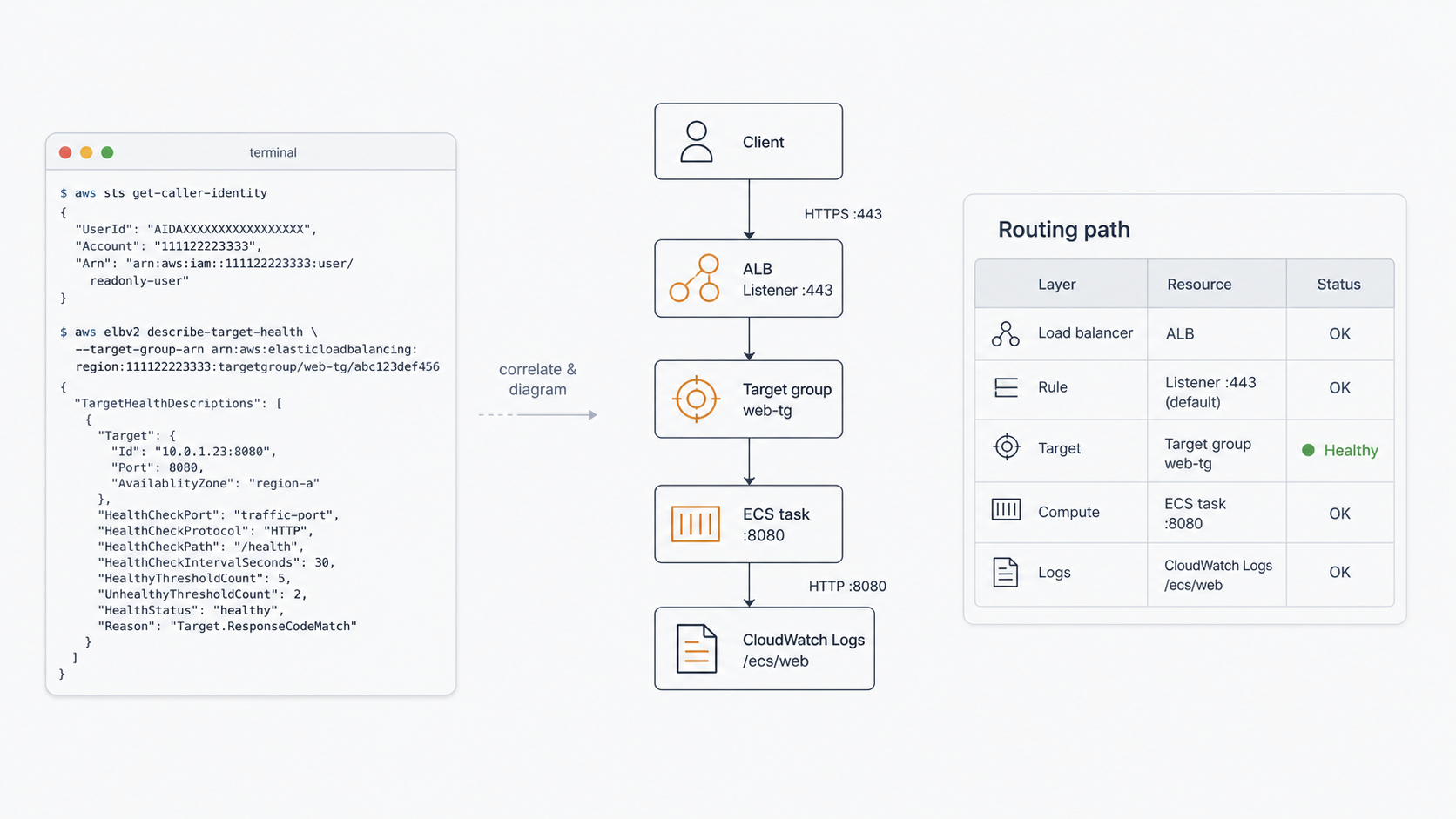
You inherited an AWS account and nobody can tell you how the pieces fit together. Here is a fast, read-only workflow that pairs the AWS CLI with an AI assistant to map compute, networking and routing —* and turn the raw JSON into clean architecture diagrams.
1. Why CLI + AI beats clicking around the console
The AWS Console is great for one resource at a time, but terrible for answering “how does traffic actually reach this service?” That answer is spread across a load balancer, its listeners and rules, target groups, target health, an ECS service, a task’s elastic network interface, subnets, and a log group. Clicking through all of that is slow and easy to get wrong.
The AWS CLI returns every one of those facts as structured JSON. An AI assistant is very good at three things on top of that JSON:

Crucially, everything here uses describe-*, list-* and get-* calls only. You are reading the environment, never changing it.
2. Connecting with AWS IAM Identity Center (SSO)
Most organizations front AWS access with IAM Identity Center (formerly AWS SSO). Instead of long-lived access keys, you log in through your browser and the CLI receives short-lived credentials. You configure this once in ~/.aws/config (on Windows: %UserProfile%\.aws\config).
2.1 The config file
A typical SSO configuration looks like this. Everything below is anonymized — replace the placeholders with values from your own access portal.
# ~/.aws/config

[sso-session my-sso]
sso_start_url = https://my-org.awsapps.com/start
sso_region = us-east-1
sso_registration_scopes = sso:account:access

[profile my-profile]
sso_session   = my-sso
sso_account_id = 111122223333
sso_role_name  = MyReadOnlyRole
region = us-east-1
output = json
Note on the two files. ~/.aws/config holds non-secret settings (start URL, account id, role name, region). ~/.aws/credentials holds the actual keys and is secret. With SSO the CLI usually caches short-lived tokens under ~/.aws/sso/cache and populates credentials on demand — so depending on your setup the credentials file may be minimal, auto-generated, or absent.
2.2 The credentials file
Where config says who you are and where to authenticate, ~/.aws/credentials holds the keys themselves. It is a plain INI file with one block per profile. With IAM Identity Center these are temporary credentials — note the aws_session_token and the ASIA… key prefix, which mark short-lived STS credentials that expire and are refreshed when you log in again.
# ~/.aws/credentials   —   SECRET: never commit, share, or paste into a chat

[my-profile]
aws_access_key_id     = ASIAEXAMPLEONLY1234567
aws_secret_access_key = wJalrXUtnFEMI/K7MDENG/EXAMPLEKEY
aws_session_token     = FQoGZXIvYXdzE...EXAMPLE-SHORT-LIVED-TOKEN...==
Temporary vs static keys. A block with
aws_session_token(and anASIAkey id) is short-lived — refresh it withaws sso login, never by hand-editing. A block with onlyaws_access_key_id+aws_secret_access_keyand anAKIAkey id is a long-lived IAM user key — avoid these where SSO is available, and if you must use one, rotate it regularly. Either way, add~/.aws/credentialsto your ignore lists and keep it off shared drives.
2.3 Log in and verify
You can generate the config interactively, or hand-write it and log in directly:
# Option A: interactive setup (writes the blocks above for you)
aws configure sso

# Option B: you already have the config — just start a session
aws sso login --sso-session my-sso

# Point your shell at the profile for the rest of the session
#   macOS/Linux:
export AWS_PROFILE=my-profile
#   Windows PowerShell:
$env:AWS_PROFILE = "my-profile"

# Confirm who you are and which account/role you landed in
aws sts get-caller-identity
A healthy response confirms the account and the assumed role:
{
  "UserId": "AROAEXAMPLE:my.name",
  "Account": "111122223333",
  "Arn": "arn:aws:sts::111122223333:assumed-role/MyReadOnlyRole/my.name"
}
Session expired? SSO tokens are short-lived. If a command returns an expired-token or “credentials” error, just run aws sso login --sso-session my-sso again. No keys to rotate.
3. The discovery workflow
The loop is simple: run a small, targeted read-only command, paste the JSON to your AI assistant, and ask it to correlate and diagram. Repeat, drilling from the edge (DNS/load balancer) inward to the workload.

4. The read-only command toolkit
These are the workhorse commands, grouped by layer. Add --output table for humans or keep JSON for the AI. Use --query (JMESPath) to trim noise.
4.1 Compute — what is running?
# ECS: clusters, services, and the task behind a service
aws ecs list-clusters
aws ecs list-services --cluster my-cluster
aws ecs describe-services --cluster my-cluster --services my-service
aws ecs list-tasks --cluster my-cluster --service-name my-service
aws ecs describe-tasks --cluster my-cluster --tasks <task-arn>

# EC2 instances (name + state + type in one line each)
aws ec2 describe-instances \
  --query "Reservations[].Instances[].{Id:InstanceId,State:State.Name,Type:InstanceType}" \
  --output table
4.2 Networking & routing — how does traffic arrive?
# Load balancers and their listeners
aws elbv2 describe-load-balancers
aws elbv2 describe-listeners --load-balancer-arn <alb-arn>

# The rules that decide where a request goes (host + path matching)
aws elbv2 describe-rules --listener-arn <listener-arn>

# Target groups and, critically, whether targets are healthy
aws elbv2 describe-target-groups --load-balancer-arn <alb-arn>
aws elbv2 describe-target-health --target-group-arn <tg-arn>

# Resolve a task/instance IP to its subnets
aws ec2 describe-network-interfaces --network-interface-ids <eni-id>
aws ec2 describe-subnets --subnet-ids <subnet-a> <subnet-b>
4.3 Observability — where are the logs?
# Find and follow a service's log group
aws logs describe-log-groups --query "logGroups[].logGroupName" --output table
aws logs tail my-service-log-group --since 1h --follow
One command, many answers.
describe-target-healthalone tells you the target’s IP, port, and whether the load balancer considers it healthy — often the single most useful call when a service “isn’t responding”.
5. Turning JSON into a diagram with AI
Once you have the JSON, the prompt is the easy part. A reliable pattern:
“Here is the output of
describe-load-balancers,describe-rules,describe-target-groups,describe-target-healthanddescribe-services. Correlate them and produce (1) a short table of the routing path and (2) a Mermaid flowchart of how an inbound request reaches the container. Anonymize account ids, DNS names and IPs.”
The assistant stitches the resources together and returns a diagram like the one in the next section. Because the input is just facts, the output is grounded — no guessing about an architecture you can’t see.
6. Worked example: an internal web service
Here is an anonymized result of running the toolkit against a small internal service: an Application Load Balancer routing a single host + path to a containerized API behind a blue/green pair of target groups.
flowchart TB
    subgraph client["Caller (inside VPC / VPN)"]
        C["HTTPS request
Host: app.internal.example.com
Path: /inbound"]
    end
    subgraph vpc["VPC (region: us-east-1)"]
        subgraph alb["ALB: app-dev-alb (internal)"]
            L["Listener HTTPS :443"]
            R{"Rule priority 1
host == app.internal.example.com
AND path == /inbound"}
        end
        subgraph tgs["Target groups (blue / green)"]
            TG1["tg-blue (primary)
HTTP :8080
health: GET /health"]
            TG2["tg-green (idle)"]
        end
        subgraph ecs["ECS Fargate: app-dev-cluster"]
            T["Task: inbound-service
ENI 10.0.1.23:8080"]
            H["GET /health (open)"]
            A["POST /myapiendpoint/* (authed)"]
        end
        CW["CloudWatch Logs
group: inbound-service"]
    end
    C -->|TLS 443| L --> R
    R -->|match| TG1 --> T
    TG2 -.->|swap on deploy| T
    TG1 -.->|health probe| H
    T --> H
    T --> A
    T --> CW
The matching summary table the AI produced alongside it:

From “I have no idea how this works” to a shareable diagram in a handful of read-only commands.
7. Tips, guardrails and good habits

The takeaway. You don’t need a Terraform state file or tribal knowledge to understand an AWS environment. A read-only session, a dozen
describecommands, and an AI that can correlate and draw will give you an accurate, publishable picture of almost any architecture — in minutes.
Written from a real, fully-anonymized exploration workflow. All account ids, DNS names, IP addresses, cluster and service names are fictitious examples.
*Disclaimer: The em dashes (—) in the text above were added thoughtfully by a human, not by AI.