
A story about email push notifications lying to you, and why SMS saved the day.
The Goal: A Lion Roar for Every Order
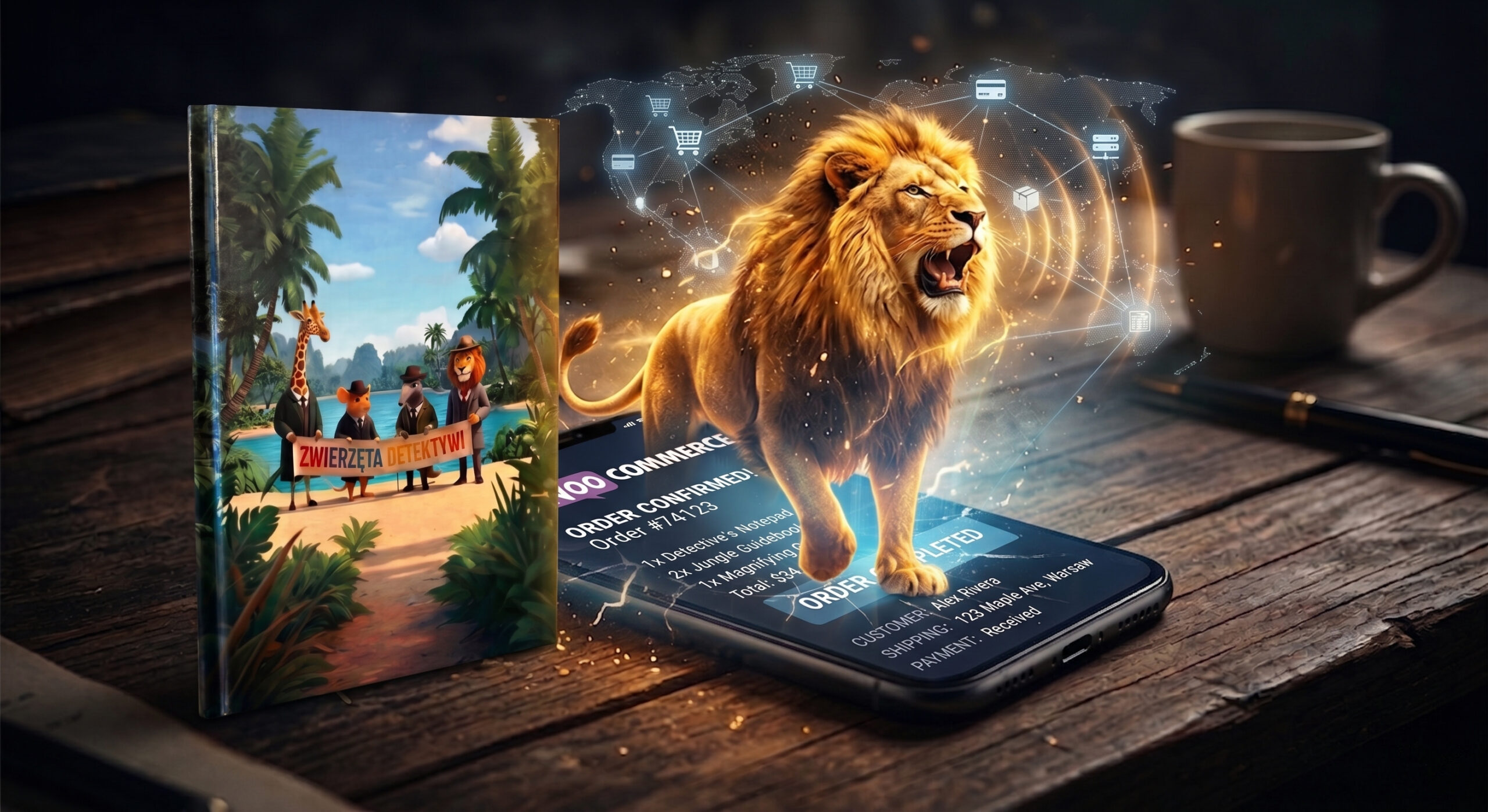
I publish children’s audiobooks. One of the main characters in our book series is a lion — bold, brave, and impossible to ignore. The series is a family project: my daughter is the co-author of the books themselves, and when it comes to decisions about how things should work, her voice carries weight.
So when we sat down to brainstorm what sound should play when a new order comes in, it took her about three seconds to answer.
“A lion roar, Dad. Obviously.”
She’s right. And so she became the co-author of this notification system too.
The idea behind it is simple: when someone buys one of our books in my WooCommerce store, we want to know immediately — not in 8 minutes, not after unlocking my phone, not after digging through email. Our customers are children, and we take that seriously. A kid waiting for a package is counting the days. The least we can do on our end is pack and ship it the same day the order comes in — no delays, no “I’ll check my email later.” That means we need to know the moment an order lands, wherever we are, whatever we’re doing.
We wanted a loud, unmistakable sound. A sound that means drop everything — someone just bought a book, let’s get it packed. A sound our lion would be proud of.
You can set any sound you like — a cash register, a fanfare, a custom voice message. We chose the lion. And getting that instant, reliable roar on iOS turned out to be far more of an adventure than either of us expected.
Attempt #1: Email (WooCommerce Default)
WooCommerce already sends an email on every new order — it’s built in. My first thought: “I’ll just create an iOS Shortcut that triggers when that email arrives.”
iOS Shortcuts has an Email trigger under Automations. Sounds perfect. In theory.
Gmail — Doesn’t Work at All
I added my Gmail account to Apple Mail and set up the Shortcut trigger. Nothing happened. After digging into it, the reason is technical: Gmail doesn’t support Push mail. It uses IMAP polling — Apple Mail checks for new messages on a schedule, not in real time. The Shortcuts Email trigger never fires because iOS doesn’t get a push signal from Gmail at all.
iCloud — Push Works, Shortcut Doesn’t
I set up a Gmail filter to forward qualifying order emails to my iCloud address. iCloud does support push. Apple Mail received the emails instantly. But the iOS Shortcut still didn’t trigger reliably. This is a known bug reported by many users — the iCloud email trigger in Shortcuts is simply unreliable. Sometimes it fires, sometimes it doesn’t. Not acceptable for something I want to depend on.
Outlook — Works, But With Delay
I tried adding an Outlook.com account to Apple Mail. Exchange protocol, proper push support. The Shortcut did trigger — but with 5–8 minute delays. For an order notification, that’s too slow. I want to know now.
The Analysis: Why Email Is the Wrong Tool Here
After going through all three options and consulting with AI to map out the problem, the conclusion was clear: iOS email triggers are fundamentally unreliable for real-time automation. They depend on:
- The mail protocol supporting push (Gmail doesn’t)
- Apple Mail receiving the push correctly
- iOS Shortcuts picking up the signal (which it often misses)
- Background app refresh not being throttled by iOS battery management
Three layers of “maybe”. Too fragile.
The Memory That Solved It: Twilio and a Bike
A few years ago, I built a scraper that monitored a bike shop website, waiting for my favorite color of a bicycle to come back in stock. When it did — I got an SMS via Twilio. It was instant, reliable, and worked every single time.
That memory clicked. SMS doesn’t care about push protocols. SMS just arrives.
The Solution: WooCommerce → Make.com → Twilio SMS
How It Works
Customer places order in WooCommerce
         ↓  (instant HTTP POST, JSON payload)
Make.com receives webhook
         ↓
Twilio sends SMS to my phone
         ↓
Custom SMS tone plays on iPhone  ←  🦁
Total delay: 2–4 seconds.

Step 1: WooCommerce Webhook
In your WordPress dashboard:
WooCommerce → Settings → Advanced → Webhooks → Add Webhook
| Field | Value |
|---|---|
| Name | New Order → Make |
| Status | Active |
| Topic | order.created |
| Delivery URL | (your Make.com webhook URL — see Step 2) |
| API Version | WP REST API v3 |
Save it. WooCommerce will immediately send a test ping to verify the URL.
Step 2: Make.com Scenario
- Go to make.com → Create a new scenario
- First module: Webhooks → Custom webhook → click Add → give it a name
- Make generates a unique URL like:text
https://hook.eu1.make.com/abc123xyz... - Paste this URL back into the WooCommerce webhook Delivery URL field
- Add a second module: Twilio → Send an SMS
In the Twilio module, you can use data from the WooCommerce webhook payload to build a dynamic message:
New order! 🛒 {{billing.first_name}} {{billing.last_name}} — {{total}} PLNStep 3: Twilio Setup
- Create an account at twilio.com
- Get a phone number (~$1/month) or use an Alphanumeric Sender ID (e.g.,
MyBookShop) — supported in Poland, no number purchase needed - In Make.com, connect your Twilio account using your Account SID and Auth Token
Costs are minimal: ~$0.05 per SMS to a Polish number (free in test version)
Step 4: Making the Lion Roar — Not for Every SMS
You don’t want your phone roaring every time a friend texts you. There are two clean approaches:
Option A: iOS Shortcut triggered by SMS content (recommended)
This is the most flexible approach — it plays any audio file you choose and fires only when an SMS contains a specific keyword from your order notification.
First, create the Shortcut:
- Open Shortcuts → + (New Shortcut)
- Add action: Get File → select your lion roar MP3/M4A from the Files app
- Add action: Play Sound
- Name it something like
"Lion Roar Order"
Then, create the Automation:
- Go to Shortcuts → Automation → New Automation → Message
- Set “Message Contains” to a unique string that Twilio includes in every order SMS — e.g.
"New order"or your store nameapple - Set the action to Run Shortcut → select
"Lion Roar Order" - Enable Run Immediately (no confirmation tap needed)
Now the Shortcut fires only when an SMS contains your specific order keyword — not for any other message. It’s selective, instant, and gives you full control over the audio.
(I’m sonsidering if not to integrate with 11labs or another AI text-to-speech and read order value – but this is needed yet)
Option B: Custom text tone for the Twilio contact (simpler, no Shortcuts needed)
iOS lets you assign a custom text tone to a specific contact:macrumors+1
- Save your Twilio number as a contact — e.g.
"WooCommerce Orders" - Open the contact → tap Edit → scroll down to Text Tone
- Assign your custom lion roar
.m4rfile - Now only SMS from that number triggers the roar — all other messages use your normal tone
To create a .m4r file from an MP3: open GarageBand on iPhone → import audio → export as ringtone → assign to contact.
💡 Option A gives you full control — any audio file, any length, and you can chain additional actions (log the order, send a confirmation, etc.). Option B requires no Shortcuts at all but is limited to ringtone-length audio and triggers on any SMS from that number, not just order notifications.
I use Option A — the lion roars from a proper audio file, exactly when it should.
Why This Works When Email Doesn’t
| Method | Push? | Reliable Shortcut trigger? | Delay |
|---|---|---|---|
| Gmail → Apple Mail | ❌ No push | ❌ | Never |
| iCloud Mail | ✅ Push | ❌ Buggy | 0–∞ min |
| Outlook in Apple Mail | ✅ Push | ⚠️ Inconsistent | 5–8 min |
| Twilio SMS | ✅ Carrier push | ✅ Always | 2–4 sec |
SMS bypasses all of Apple’s email infrastructure and arrives via the cellular carrier push network — the most reliable delivery mechanism on a smartphone.
Want More Than SMS? Alternative Approaches
If you want to trigger an actual iOS Shortcut (to play a specific audio file, log data, or chain actions), there are two solid options:
- Pushcut (~$10/year) — receives a webhook from Make.com and silently runs any iOS Shortcut automatically, no tap required
- Pushover (~$5 one-time) — instant push notifications with custom sounds, triggered via Make.com HTTP module
Both are more flexible than SMS if you want full Shortcut automation, but SMS is simpler and requires zero extra apps.
The Result
Every time someone buys one of my children’s audiobooks, my phone roars. It’s immediate, it’s reliable, and it never misses an order. The whole setup took about 30 minutes once I stopped fighting with iOS email triggers.
Would You Do It Differently?
I’d love to hear from you — especially if you’re on iOS and you’ve found a way to trigger a specific custom sound reliably on order notification without SMS. The holy grail would be a fully silent background Shortcut that plays audio the moment a WooCommerce order lands. If you’ve cracked it, drop a comment below.
[edit 1.05]
Pro tip: set your DND hours – unless you enjoy being roared at by an order notification lion at 6:11 AM on a day off 🦁 Learned that one the hard way today.